Author Jim Hoskins
Total Time 5 minutes 39 seconds
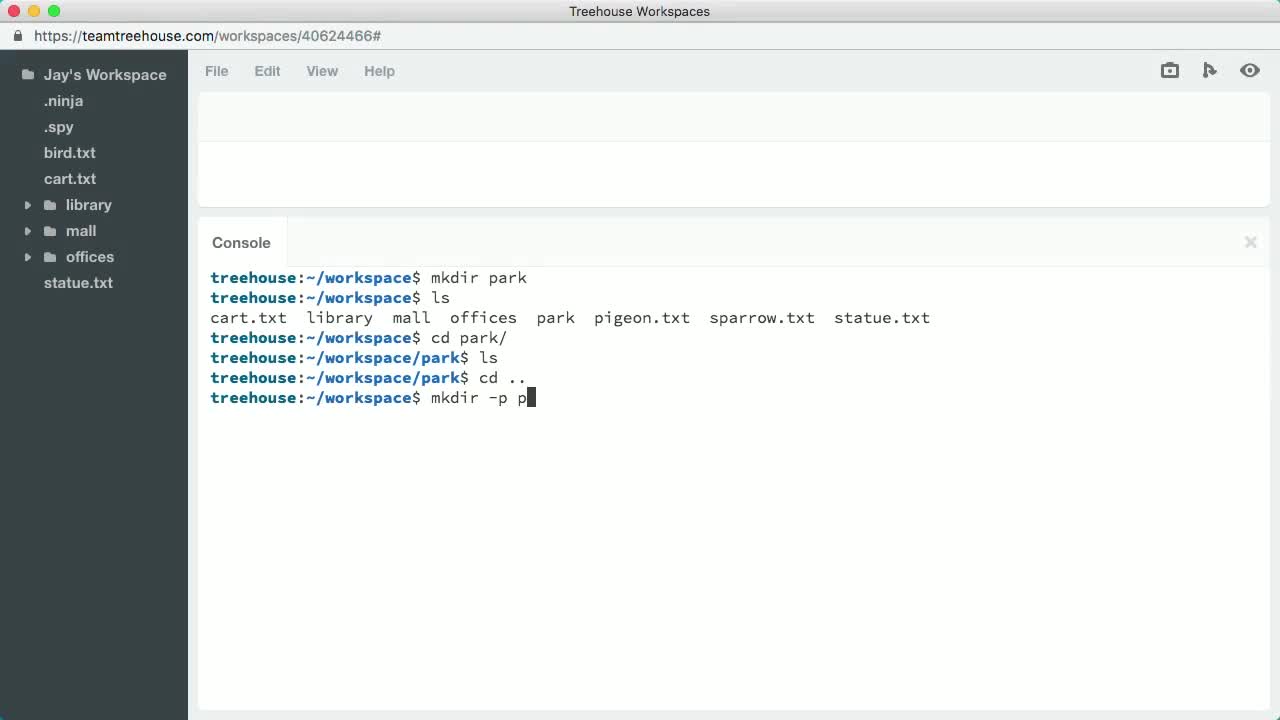
The console is a text-based interface to your computer. It allows you to interact with files, folders and programs using text commands instead of windows, buttons and menus.
Launch ConsoleVideo Transcript
-
00:00
?music? [Deep Dive]
-
00:03
[Console Foundations] [Getting Started with the Console with Jim Hoskins]
-
00:10
Hi, I'm Jim, and we're going to be learning about the console.
-
00:13
The console is just another way to interact with your computer.
-
00:20
You really shouldn't be afraid of it. You should just try it.
-
00:25
Delicious.
-
00:28
Anyway, with the console, instead of working with windows, toolbars,
-
00:32
menus, and buttons, you're just interacting with text.
-
00:35
You perform actions by writing commands,
-
00:37
and you get your information back from the computer in the form of text.
-
00:42
Why would we ever want to do this?
-
00:44
Even though it seems complex and difficult to use a text-only interfaced computer,
-
00:49
it's actually quite liberating.
-
00:51
That's because when you use the console, there's much more flexibility
-
00:55
and consistency than when you're using a graphical user interface.
-
01:00
Programs can be linked together to perform really powerful actions
-
01:03
that would be impossible to create using simple menus and buttons.
-
01:07
Why should we bother learning the console?
-
01:09
It's how we used to interact with computers, but now we have graphical interfaces
-
01:14
with desktops, menus, and windows.
-
01:16
Well, when you're programming or doing web development or design,
-
01:19
some of the tools you may use may not have a graphical interface.
-
01:24
These tools must run on the console.
-
01:26
And if you're not familiar with the console,
-
01:28
it will be a very frustrating experience.
-
01:31
Websites and web applications will be deployed on remote computers called servers
-
01:35
and most of the time, the only way to interact directly with these machines
-
01:39
is to use a command line over a remote connection called SSH.
-
01:45
The fact is, it's hard to avoid running into the console.
-
01:48
And why would you want to?
-
01:49
Once you become familiar with the environment,
-
01:52
reaching for your mouse to mess with some menu will seem like a big waste of time
-
01:55
when you could just type a couple of words and be done with it.
-
02:01
Now, I've been talking a lot about the console,
-
02:03
but we should get more specific.
-
02:05
Most operating systems actually provide a console or a command prompt
-
02:08
in some form or another.
-
02:10
Because it's just a way to interact with your computer.
-
02:13
To understand the console, is to understand your operating system better.
-
02:17
But there are so many different operating systems out there.
-
02:19
Which one should we choose?
-
02:21
Linux. Now, I hear you saying, "I don't use Linux." Hear me out.
-
02:26
You may have heard of something called Unix.
-
02:29
It's an operating system first developed in the 1960s.
-
02:33
It created a lot of great ideas on how an operating system should work.
-
02:37
More importantly, a lot of operating systems were created using the same ideas
-
02:41
and philosophies, and they mimic Unix.
-
02:44
Many of these are free and open source, unlike the original Unix,
-
02:47
and some are not.
-
02:50
Linux, or GNU/Linux to be more precise, is one of those open source descendants.
-
02:55
Now, why is Linux important to us?
-
02:57
The vast majority of servers on-line run some flavor of Linux.
-
03:02
Another operating system that is based on Unix is called Darwin.
-
03:06
Darwin is what powers Apple's Mac OS10.
-
03:09
That means nearly everything you learn about Linux will apply to Mac OS10 as well.
-
03:15
Now, there are some other operating systems like BSD and Solaris,
-
03:18
all of which share this common heritage.
-
03:21
In fact, there is a standard that these operating systems share with each other
-
03:24
called POSIX, or portable operating system interface.
-
03:29
This is a standard that makes sure that all of these different yet related operating systems
-
03:33
stay consistent to some degree.
-
03:37
So, that once you know one, you can use another.
-
03:40
This is one reason why OS10 is so popular with web developers.
-
03:44
If our apps are going to be deployed on Linux,
-
03:46
it makes sense to develop them in a similar environment.
-
03:50
Now, you could use Linux on your desktop to develop,
-
03:52
and many do--it's a great choice--
-
03:54
however, Mac OS10 provides a full POSIX compatible environment
-
03:59
and a finally tuned graphical interface to go with it.
-
04:03
Now, that brings us to Microsoft Windows.
-
04:05
Now, where does it stand?
-
04:06
Well, it's not a POSIX compatible operating system at all.
-
04:11
The way Windows works is actually quite different.
-
04:14
This makes Windows a less desirable choice when doing web development
-
04:17
because it's not compatible with the operating systems
-
04:20
that we're likely to use on her web servers.
-
04:23
Now, that's not to say you can't use it; you certainly can.
-
04:25
If you're developing with Microsoft technologies like the .net suite of tools,
-
04:30
you must use Windows.
-
04:32
Now, it has a command prompt and some of the basics appear similar
-
04:36
between Windows and POSIX compatible operating systems,
-
04:39
but those similarities are largely superficial.
-
04:43
Even if you use Windows as your personal computer,
-
04:45
it's still a huge value to learn to navigate Linux
-
04:49
because chances are, you're going to run into it sooner or later.
-
04:51
So, chances are you're not using Linux right at this moment.
-
04:55
So, how are we going to learn it?
-
04:56
Well, we've built something just for you.
-
04:59
Click the "Launch Console" button on this page.
-
05:01
It's going to open up a command line window to a Linux computer we set up for you.
-
05:06
This is a real computer running on the Internet that you can use to follow along
-
05:09
and experiment with us.
-
05:11
If you're using Mac or Linux or BSD or another POSIX operating system,
-
05:16
you can use the console on your own computer if you'd like.
-
05:19
Later on, however, we will be using some programs
-
05:22
that are specific to our flavor of Linux--Ubuntu.
-
05:26
We recommend that you follow along as well using the Treehouse console.
-
05:31
Go ahead and make sure that your Treehouse console window is open.
-
05:34
When you see the dollar sign followed by a blinking rectangle, you're ready to go.
Stage Steps
-
Play
Preview
Introduction
5 minutes 39 seconds
-
ABC
Preview
Quiz: Introduction
3 questions
-
Play
Preview
Running Commands
12 minutes 36 seconds
-
ABC
Preview
Quiz: Running Commands
3 questions
-
Play
Preview
Moving Around the Filesystem
11 minutes 44 seconds
-
ABC
Preview
Quiz: Moving Around the Filesystem
3 questions
-
Play
Preview
Reading Files
6 minutes 55 seconds
-
ABC
Preview
Quiz: Reading Files
3 questions
-
Play
Preview
Editing Files
3 minutes 35 seconds
-
ABC
Preview
Quiz: Editing Files
3 questions
-
Play
Preview
Moving and Deleting Files
11 minutes 30 seconds
-
ABC
Preview
Quiz: Moving and Deleting Files
4 questions
Try creating a folder that contains several text files. Try organizing notes using these files.