Welcome to the Treehouse Community
Want to collaborate on code errors? Have bugs you need feedback on? Looking for an extra set of eyes on your latest project? Get support with fellow developers, designers, and programmers of all backgrounds and skill levels here with the Treehouse Community! While you're at it, check out some resources Treehouse students have shared here.
Looking to learn something new?
Treehouse offers a seven day free trial for new students. Get access to thousands of hours of content and join thousands of Treehouse students and alumni in the community today.
Start your free trial

Luqman Shah
3,016 PointsHow to import fonts to CSS on workspaces?
I'm trying to use a font I downloaded from font squirrel, after I extracted the file I dragged it into workspaces, but how do I use it? I re-watched the video on web fonts, but I don't know how he got the font file into workspaces with the code snippet.
2 Answers

Matthew Long
28,407 PointsYou could use google fonts and import a font easily. This is what I usually do. Or I think you can use @font-face:
@font-face {
  font-family: 'YourFontName'; // name you give your font
  src: url('http://domain.com/fonts/font.ttf'); // path to font. use url or local
}

.classname {
  font-family: 'YourFontName';
}
If this doesn't work try forking your workspace so we can help you further.


Janelle Mackenzie
7,510 PointsHOW TO USE FONT SQUIRREL (MAC TUTORIAL):
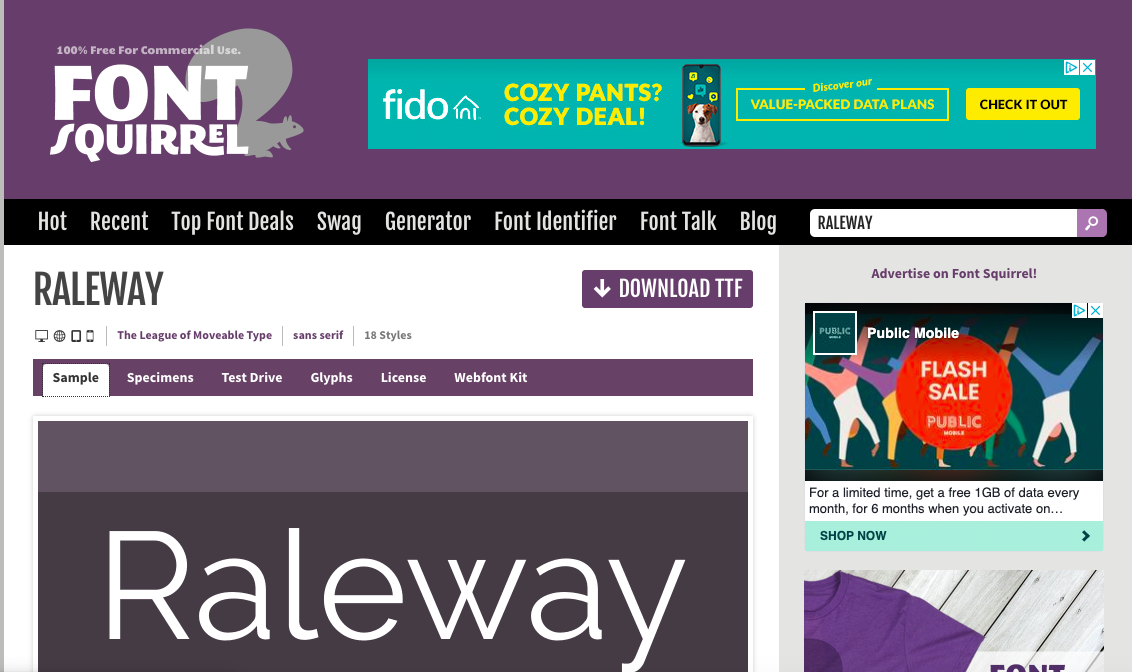
- Step 1) Go to fontsquirrel.com and find a font you like (via browse or search), click on the font to go to font page.
-
Step 2) Click the "Download" button in the top right corner (this will download the font onto your computer in 'zip' format).
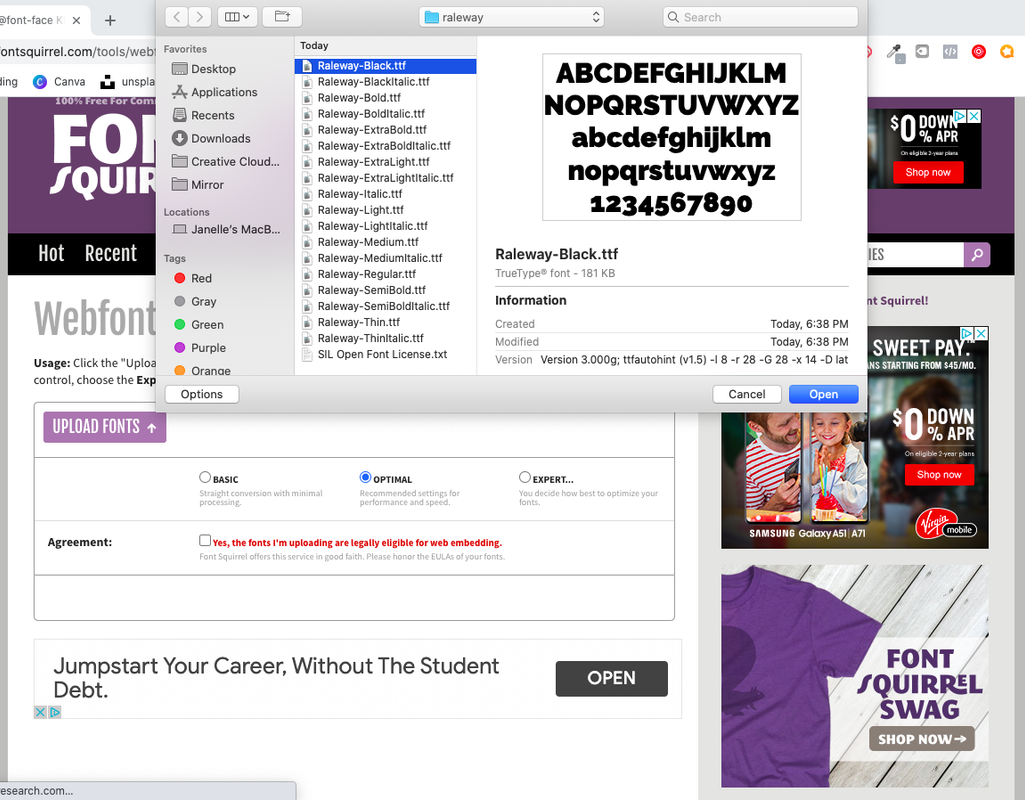
- Step 3) Open the 'zip' file from step 2, notice there are multiple variations of the font (you will choose which one(s) you wish to download in the next step)
-
Step 4) Go to "Generator" (in the nav bar) and click on the "Upload fonts" button. Select the fonts from step 3 you wish to download.
-
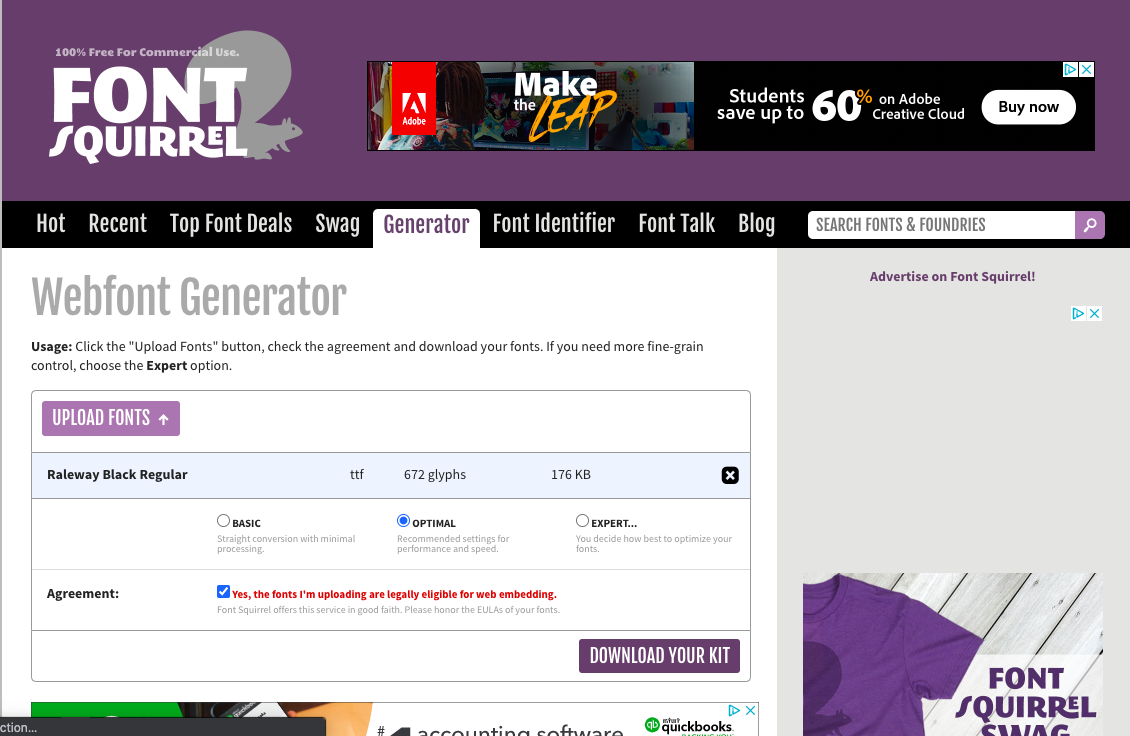
Step 5) Once font has been uploaded, it is now time to download the webkit. Make sure to check off the "Agreement" box and a button will appear on the bottom right saying "Download your kit" (this will also download in a 'zip' format).
-
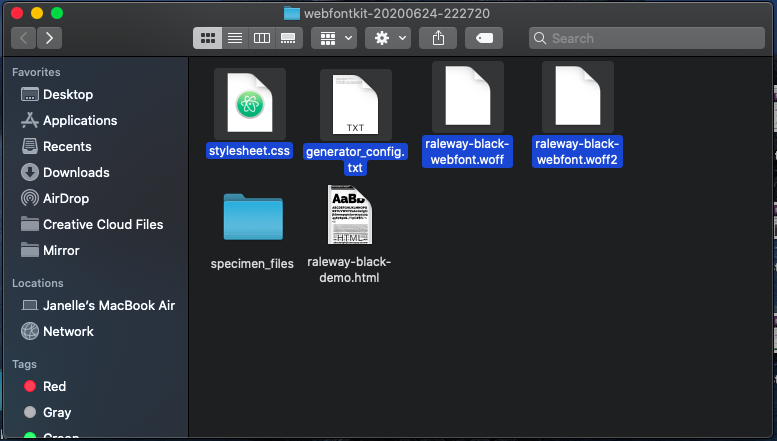
Step 6) Open the 'zip' file from step 5, notice that there are multiple files. You will need all of the files except 2 (demo.html file and specimen files are unnecessary). Copy all of the other files and paste them into the css folder of your website.
-
Step 7) Finally go to the 'stylesheet.css' file found in the zip file from step 6. Copy and paste the css into your website.css stylesheet as a @font-face rule.
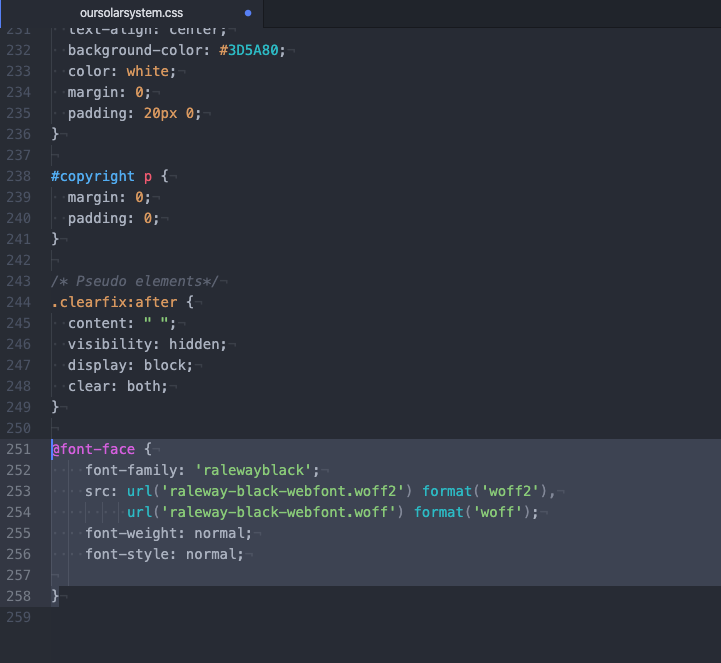
All done! :) Hope this helps someone.
Luqman Shah
3,016 PointsLuqman Shah
3,016 PointsThank you! It still did not work lol :/ (https://w.trhou.se/y2xhl9kry9)
Matthew Long
28,407 PointsMatthew Long
28,407 PointsYou linked to the font squirrel page for the font instead of the font itself. You can download the font and drag it over into the workspace. I had the font in the root directory. It worked for me using the following:
Luqman Shah
3,016 PointsLuqman Shah
3,016 PointsMatthew Long It still did not work: (https://w.trhou.se/6pu4jt04w1)